Back Up Your Serato Library the Right Way (2026)
Back up your Serato crates, cues, loops, and beatgrids before a crash or a botched cleanup wipes them. What to copy, where it lives, how to restore.
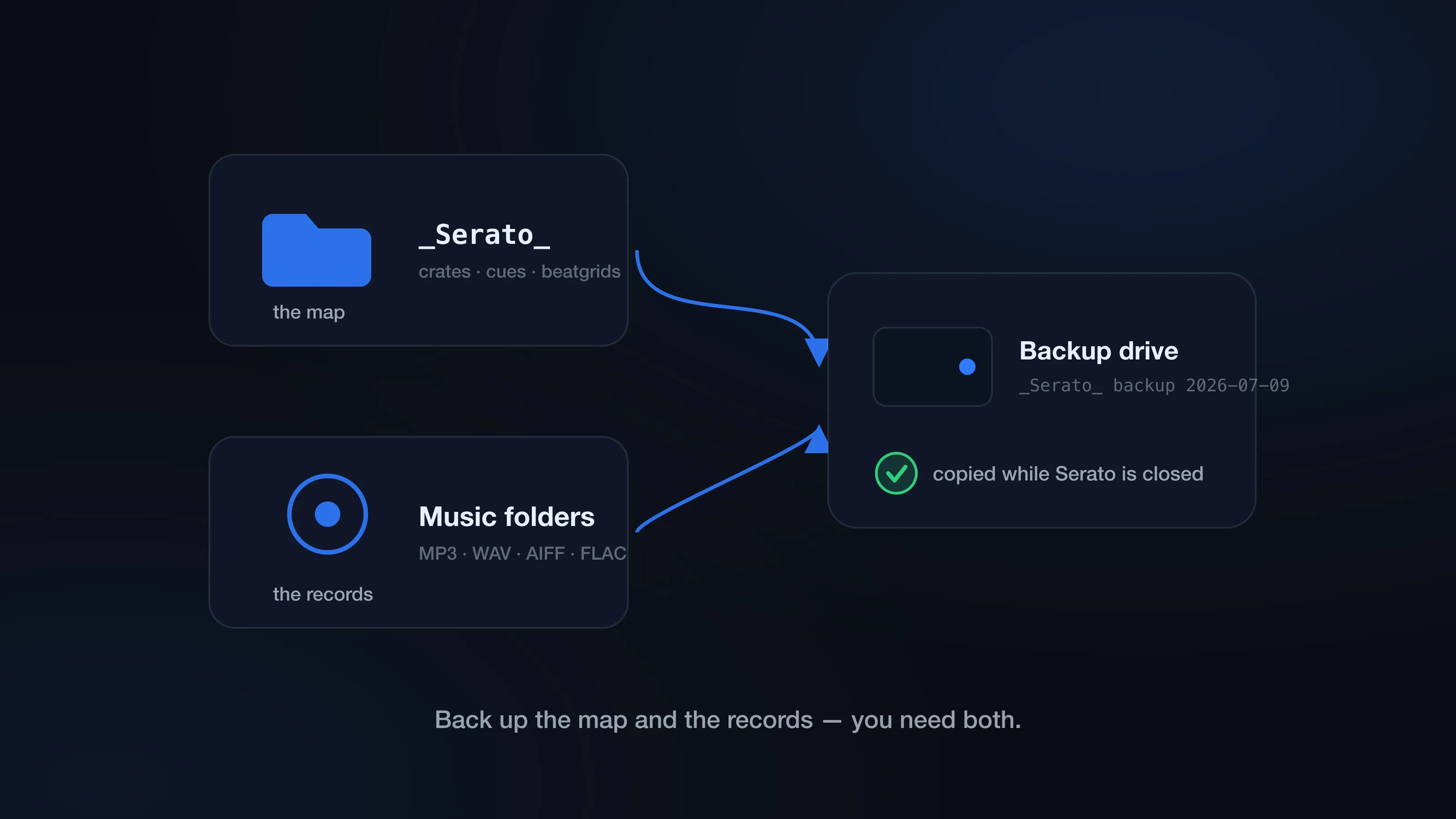
Your crates, cue points, loops, beatgrids, play history, and smart crates don’t live in the app somewhere — they live in one folder of library data. If that data gets damaged, overwritten, or left behind during a Mac move, having all your audio files won’t put your working library back together. You’ll have the records, but not the map.
Backing up a Serato library takes about five minutes, and the whole thing comes down to knowing what to copy. This guide covers the manual backup first, then where CrateSweep’s automatic backup fits during duplicate cleanup — and where it doesn’t.
What do you need to back up in a Serato library?
Two things: Serato’s library data, and the audio files themselves.
On a Mac, the library data is a folder named _Serato_ inside your Music folder:
~/Music/_Serato_
That folder holds the database, crates, cue points, loops, beatgrids, play history, and smart crate definitions — everything that makes your library yours rather than a pile of MP3s.
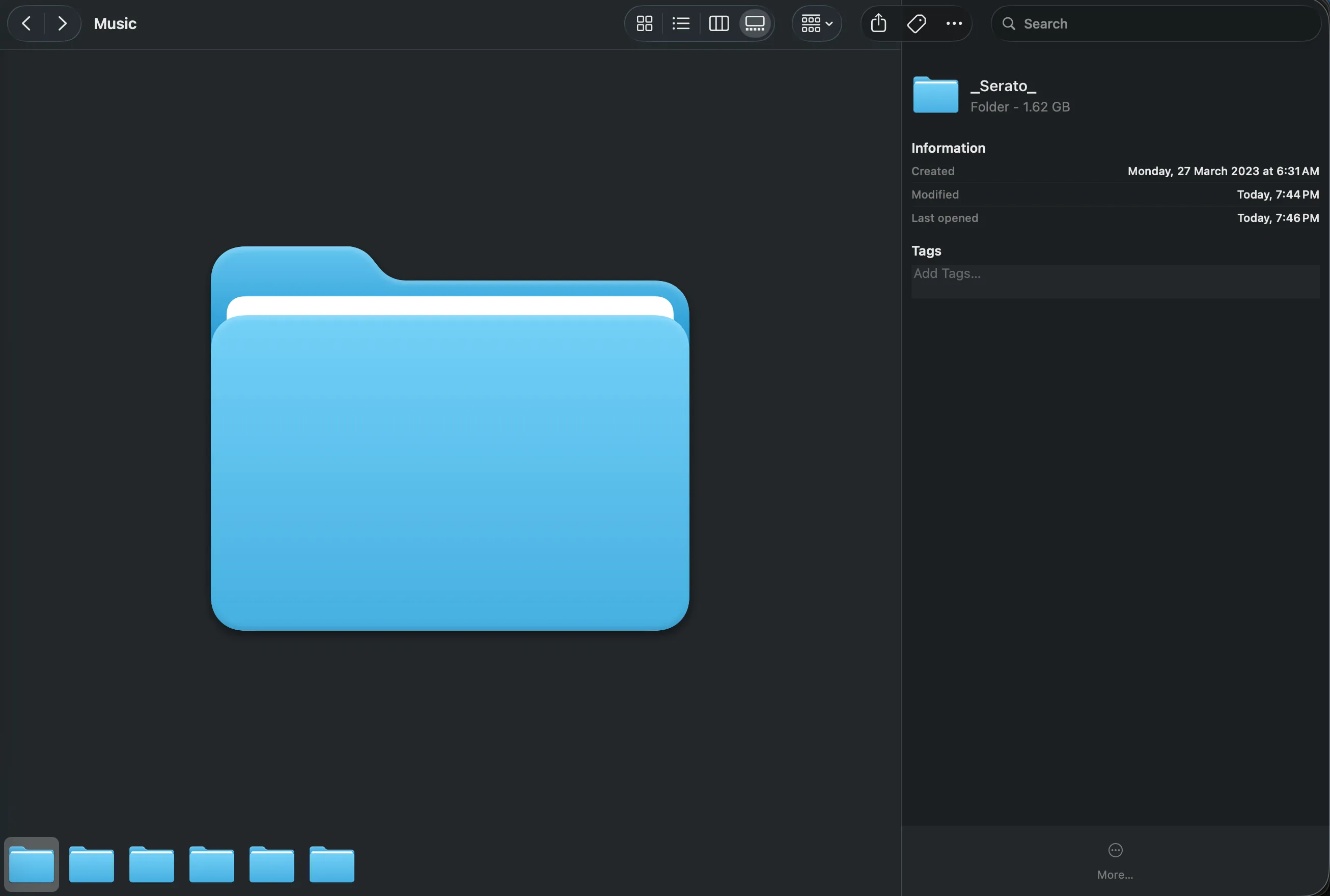
If you keep music on external drives, check each one: drives that hold music get their own _Serato_ folder at the top level. Those need backing up too.
The audio files are a separate job. Copying _Serato_ protects the library structure and your DJ metadata; it doesn’t copy a single MP3, WAV, AIFF, or FLAC. The mental model:
_Serato_is the map.- Your music folders are the records.
- You need both.
How to back up Serato library manually on Mac
First, quit Serato. It writes to its database while open, and you want to copy a database that’s sitting still, not one mid-write.
Then:
- Quit Serato DJ Pro or Serato DJ Lite.
- Open your Music folder in Finder.
- Find the
_Serato_folder. - Copy the whole folder to another drive or a cloud folder.
- Date the copy —
_Serato_ backup 2026-07-21— so you know exactly what state it captures. - Repeat for every external drive that has its own
_Serato_folder. - Back up the actual music folders your tracks live in.
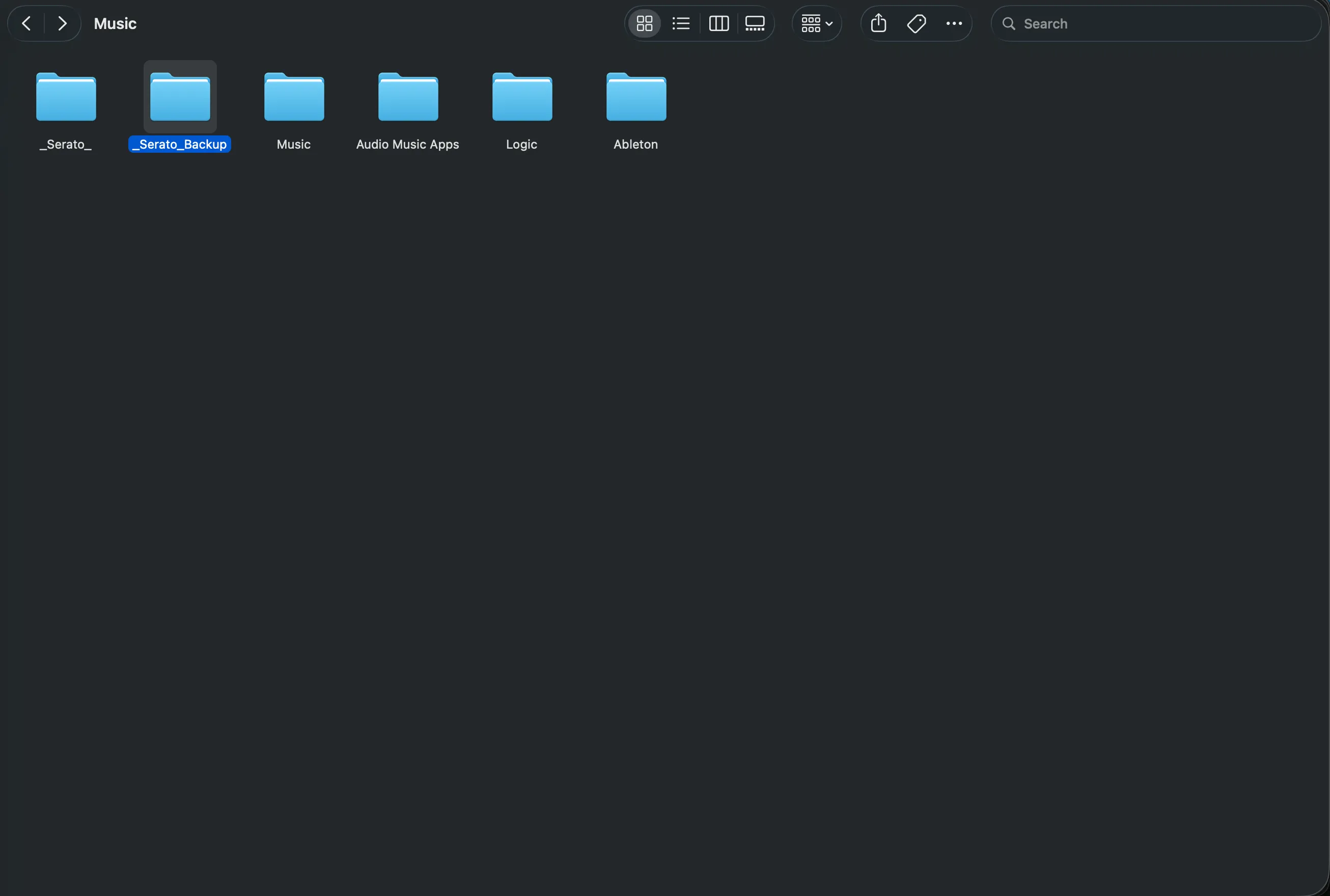
Copy the whole folder, not hand-picked files from inside it. And date every copy — an undated “backup” folder is useless the day you actually need it, because you can’t tell whether it’s from before or after the problem.
How do you restore a Serato library backup?
Restoring is the reverse, with one extra step: preserve the current state first.
Quit Serato. Rename or move the current _Serato_ folder somewhere safe — even a broken library is worth keeping until the restore is confirmed working. Then copy your backup into place:
~/Music/_Serato_
For an external-drive library, the backup goes back to the top level of that drive.
Launch Serato and actually check it: open a few crates you use, load a few tracks, confirm the cues and loops are where you left them.
One caveat — the database stores file paths. If your audio moved since the backup was taken, the restored library can show orange missing tracks even though the restore worked. That’s a path problem, not a backup problem: fixing Serato missing files covers the reconnect.
When should you back up your Serato library?
Before anything that can change a lot at once: Serato updates, macOS upgrades, duplicate removal, bulk file reorganizing, drive cloning, moving to a new Mac.
On top of that, keep a routine. Weekly if you’re gigging and adding music constantly; monthly if your library moves slowly. The bar isn’t a fancy archive system — it’s that last night’s working library is recoverable if tomorrow’s cleanup goes sideways.
Are Time Machine, Dropbox, or cloud sync enough for Serato?
They help, but none of them replaces a deliberate copy of _Serato_.
Time Machine keeps versions over time, which is genuinely useful. But before a big library change, a visible, dated copy you made on purpose beats digging through Time Machine snapshots trying to guess which one predates the damage.
Continuous sync deserves more caution. Dropbox, Google Drive, and iCloud can sync the database while Serato is writing to it, and they’ll happily propagate a bad change to every device in minutes. The safe pattern: quit Serato, make a clean dated copy, and let that sync. Cloud is a fine place to store a backup — it’s not a reason to skip making one properly.
Back up before moving your Serato library to a new Mac
A Mac migration is the single easiest way to lose a library, because it’s the moment both halves — music and _Serato_ — have to land in the right place with the right paths. Make the dated backup before you touch anything, then follow the full migration walkthrough.
Where CrateSweep’s automatic Serato backup fits
Think about when library damage actually happens. Rarely at random — usually during cleanup, because in Serato, removing a duplicate entry and deleting its audio file are two separate manual steps. Delete the wrong file in Finder and the copy you kept goes orange. That’s the moment a backup earns its keep, and it’s exactly the moment most DJs forget to make one.
That’s why CrateSweep doesn’t leave it to memory: before every duplicate deletion run, it automatically takes a timestamped backup of your Serato database, with one-click restore if you want the previous library back. Deleted files go to the Trash, and Undo Last Deletion reverses the whole run.
To keep it honest: that backup covers the deletion run, not your life. It doesn’t back up your audio files or replace the full _Serato_ copy above. Use both layers — a full dated backup before big changes, and CrateSweep’s automatic one catching the highest-risk moment every time you remove duplicates.
Backups aren’t exciting. Losing your crates the night before a gig is. Quit Serato, copy _Serato_, copy your music, date the copy, and keep it somewhere you can actually find.
CrateSweep for Serato
Sweep your library in minutes
Find duplicate tracks, review every match, and keep your Serato crates clean before your next set.
Download Free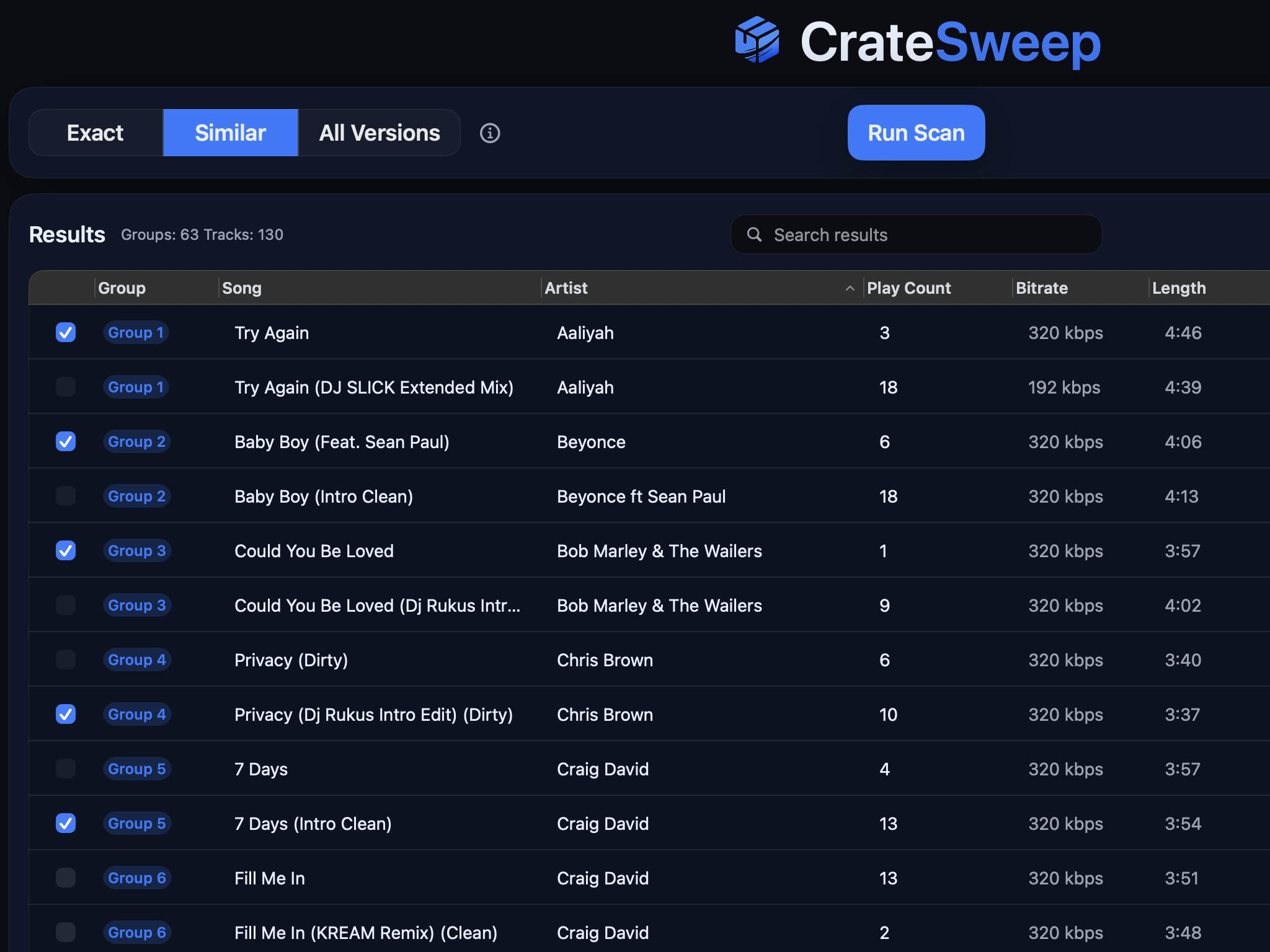
Related guides
Crate Hackers Review 2026: Is It Worth $30/Month?
What Crate Hackers actually does, who the curated crates help, where it falls short, and why crate-building works better on a clean Serato library.
dupeGuru vs CrateSweep for Serato Duplicates (2026)
dupeGuru is free but doesn't know Serato exists. What each tool catches, what deleting files does to your crates, and which is safer for DJs.
Lexicon vs CrateSweep for Cleaning a Serato Library
Lexicon and CrateSweep both find duplicate tracks, but they're built for different jobs. Pricing, workflow, and which to use for Serato cleanup.